![TEA with tag.svg]](https://help.theemployeeapp.com/hubfs/TEA%20with%20tag.svg)
Learners can explore learnings available in the library and add them to their wishlist if they want to enroll at any time.
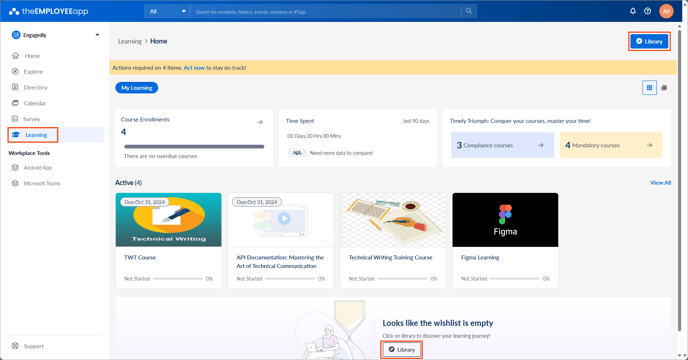
Navigate to Learning on the left pane.
The Learning home page opens, where you can view courses assigned to you or authored by others.
Option 1: Click Library at the top right.
Option 2: Scroll down to find the Library option at the center of the screen.
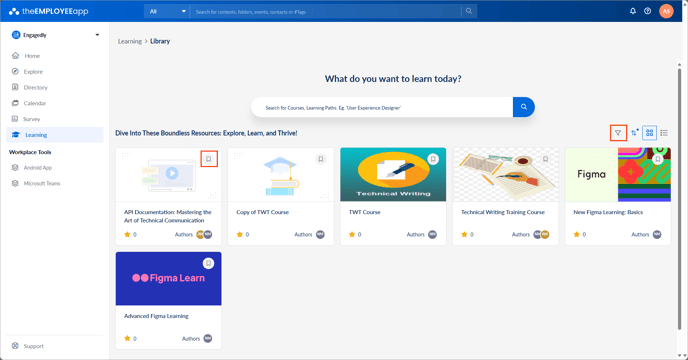
Click the Filter  Icon to filter learnings and explore them by type, author, tags, language, duration, rating, provider, level, and certification.
Also, browse learnings and add them to your wishlist.
Click the Bookmark  Icon at the top right of a learning to add it to the wishlist.
Also, navigate within the learning and click the Bookmark Icon at the top right to add it to your wishlist.
The added learnings are available in your Wishlist in the My Wishlist tab.
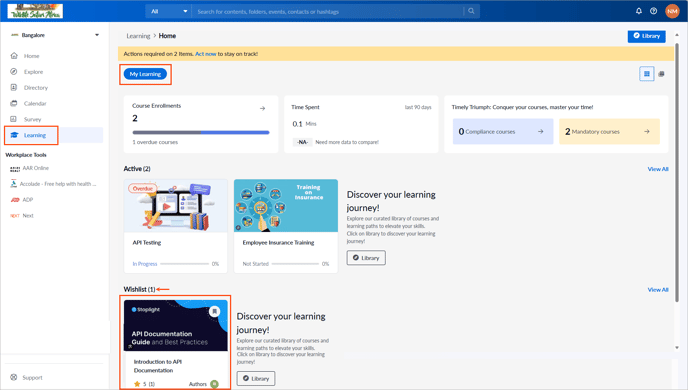
After adding a learning to the wishlist, self-enroll in it.