![TEA with tag.svg]](https://help.theemployeeapp.com/hubfs/TEA%20with%20tag.svg)
Enabling course validity, recurrence, and compliance are crucial features for managing and enhancing the effectiveness of courses.
- Course validity: Ensures that the content remains current and relevant over time.
- Course recurrence: Automates course assignments at specified intervals, fostering ongoing learning among employees.
- Compliance: Ensures employees complete mandatory training and adhere to regulatory and organizational standards, mitigating risks associated with non-compliance.
These features streamline administration and support continuous improvement in training outcomes.
During or after the course creation, authors can configure its validity, recurrence, and compliance settings.
The following scenarios illustrate the different configurations available:
- Non-recurring and non-compliance course: No recurrence schedule and is not a compliance course.
- Recurring and compliance course: Recurs at specified intervals and is also designated as a compliance course.
- Non-recurring but compliance course: No recurrence schedule but is a compliance course.
- Recurring but non-compliance course: Recurs at specified intervals but is not a compliance course.
- Valid, non-recurring, and non-compliance course: Has a set validity period, no recurrence schedule, and is not a compliance course.
- Neither valid, recurring, nor compliance course: No set validity period, no recurrence schedule, and not a compliance course.
These configurations ensure that course settings meet various training requirements and organizational policies.
After creating a course, you are redirected to the course edit page, allowing you to configure the compliance settings.
- Below the course description, click Configure in the Compliance & Recurrence field.
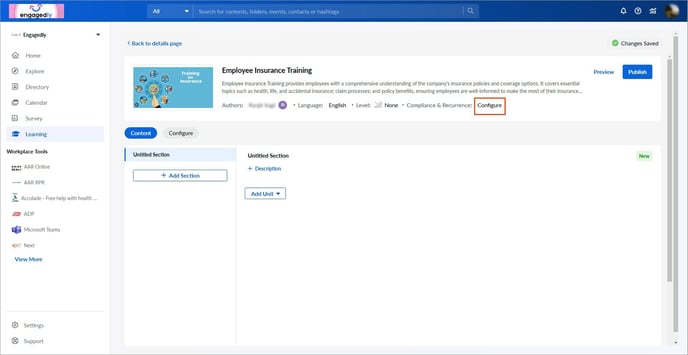
2. Set validity, recurrence, and compliance as required and click Save.
Perform the following steps to configure the compliance settings for a new course:
Navigate to Learning on the left pane.
- At the top right, click Manage Resources, and then click Add.
- Select Create Course.
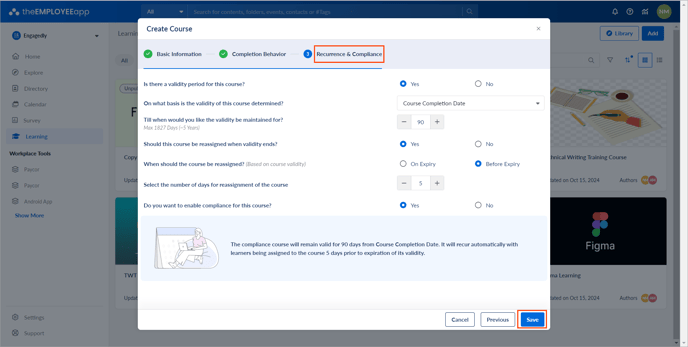
- Set validity, recurrence, and compliance as required and click Save.
Validity
- Select Yes to set a validity period for the course, or No to skip this step.
- If yes, select either Course Completion Date or Custom Date to determine the validity period for a course.
- Set the period for the validity of a course.
📒Note: Without setting validity, you cannot re-assign the course.
Recurrence
- Select Yes to re-assign the course after its validity period, or No to disable re-assignment.
- If yes, select On Expiry to re-assign the course after its validity expires, or Before Expiry and set the number of days before the expiry to re-assign.
📒Note: Course re-assignment depends on the validity setting.
Compliance
- Select Yes to enable compliance for the course, or No to disable it, and click Save.
📒Notes:
- If you enable compliance for an existing non-compliance course, it resets the learner’s progress.
- After assigning the compliance course to a group of learners, if you add a learner to that group, the learner cannot access the course until you assign it to them manually.
- If you remove the learner from a group after assigning them to a compliance course, they can still access the course. You have to manually remove the learner from the course to stop them from accessing it.
Edit compliance settings
After configuring the compliance settings for a course, edit it at any time.
- At the top right, click Manage Resources, and then select a course.
- Click Edit on the right side of the Table of Contents field.
- Click View in the Compliance & Recurrence field.
- Make the necessary changes and click Save.