![TEA with tag.svg]](https://help.theemployeeapp.com/hubfs/TEA%20with%20tag.svg)
Overview provides a snapshot of how employees interact with the content, including impressions, views, engagement, and access details.
Only account admins can view analytics and export reports for various organizational activities.
- Click the Analytics
.png?width=30&height=30&name=Analytics%20(2).png) icon at the top right of the platform to open the “Activity” page.
icon at the top right of the platform to open the “Activity” page.
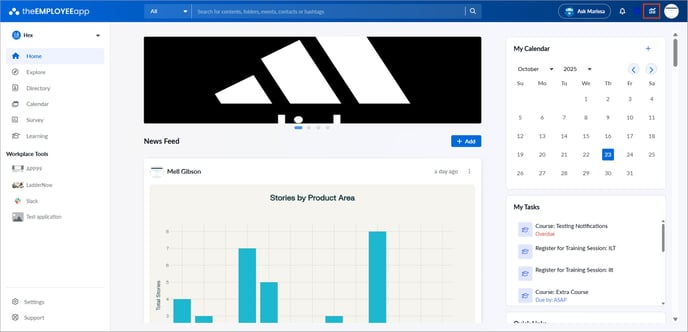
2. Select Content on the left pane.
3. Click the content that directs you to the "Content Overview" page, which shows how employees interact with specific content.
Key metrics
- Total impressions: Total number of times your content appears in the newsfeed, including multiple views by the same employee.
- Unique impressions: Number of distinct employees who view a piece of content at least once in their newsfeed.
- Dwell time: Total time employees spend actively viewing a piece of content after clicking on it.
- Latest impression: The date and time when your content displays most recently in the newsfeed.
- Total views: Number of times the content is opened in the newsfeed, through a public URL, or by clicking “Read More” to expand the caption. Each time an employee opens the content, it counts as a separate view.
- Unique views: Number of distinct employees who open the content in the newsfeed, through a public URL, or by clicking “Read More” to expand the caption. If the same employee opens the content multiple times, it still counts as one unique view.
- Average duration in web/mobile: Average time employees spend on the content in web/mobile.
- Times shared, comments, and reactions: Tracks engagement through shares, comments, and reactions.
- Accessed through notifications: Total number of times employees access the content via notifications.
- Offline downloads: Number of times employees download or save the content for offline access.
📒Notes:
- The system counts impressions only from the newsfeed view. This shows how much the content captures employees’ attention while they scroll, even without clicking on it.
- The “Read More” CTA appears in the newsfeed only when a caption has two or more lines. Clicking it expands the full caption without opening the post.
Additional information
- Push notifications: Shows if the content was sent via push (only when push notifications are enabled).
- Users mentioned: Lists employees tagged in the content.
- Hashtags: Lists hashtags used in the content.
Filters: Filter data by
- Period: Day, week, month, or custom timeframe
- App profile: All profiles or a specific app profile
- Groups: Selected groups
- App: Mobile or web