![TEA with tag.svg]](https://help.theemployeeapp.com/hubfs/TEA%20with%20tag.svg)
After creating a course, authors must add sections and units to it. If they add an instructor training unit, they must also add sessions to it and manage them if required.
Add session
Add sessions to the training in a course that is authored by you.
Navigate to Learning on the left pane.
- At the top right, click Manage Resources.
- Click Authored by you and select a course.
- In the Content tab, select an instructor training unit on the left.
- Click + Add Session.
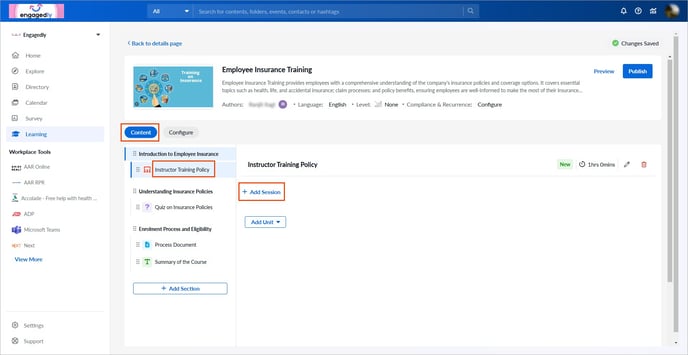
5. Type the session title and set the date and time.
6. Select the time zone from the drop-down and click Save.
If required, you can
- Select a session type.
- Type the location.
- Set the maximum number of attendees for the session.
- Select the instructors.
- Type the session details.
- Add a session reminder to the attendees.
📒Notes:
- Set the maximum number of attendees for a training session (optional). Leave the field blank to include unlimited attendees.
- Select any employee as an instructor based on their expertise.
Manage session
After adding sessions to a training, edit or delete them if required.
4. Follow steps 1 to 3.
5. Click the Pen  or Delete
  Icon on the right side of a session as required.
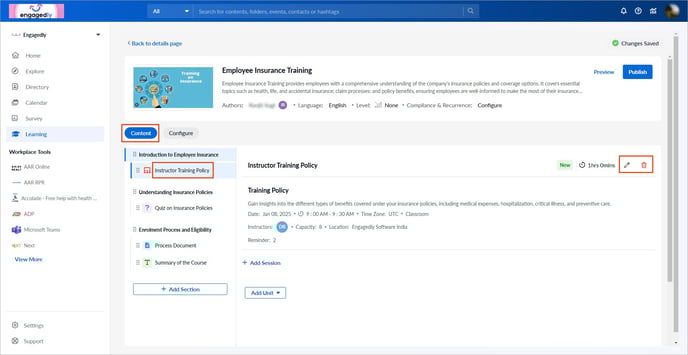
📒Note: If you add an instructor training unit to a course, you must include at least one session in the training before publishing the course.
After creating a course, you must publish it and push it to the library. Learn more in the Publish course.
📒Note: You must publish the course to assign it to the learners.