![TEA with tag.svg]](https://help.theemployeeapp.com/hubfs/TEA%20with%20tag.svg)
After creating a course, authors must add sections and units to it. If a quiz unit is added, they must add questions to it and manage them if required.
Authors can include questions with single or multiple correct answers to evaluate the learner's knowledge. They can also provide explanations for correct answers after learners attempt the quiz. It enables learners to assess their performance and improve their understanding of the topic.
Add question
After adding a quiz unit to the course, you must add questions to it. You can add questions to the quiz in a course that is authored by you.
Navigate to Learning on the left pane.
- At the top right, click Manage Resources.
- Click Authored by you and select a course.
- In the Content tab, select a quiz unit on the left.
- Click + Add Question.
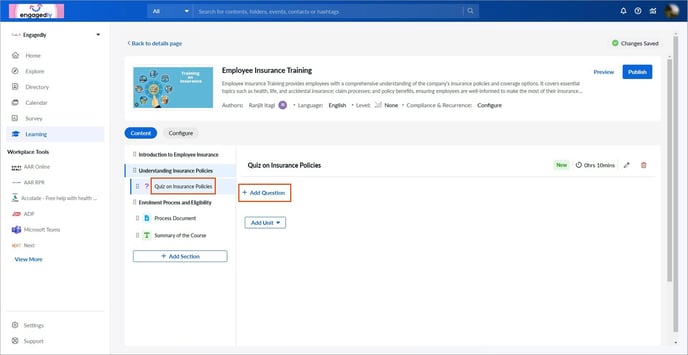
5. Type the question, select a question type, and click Save.
📒Note: When selecting a question type:
- Single-choice or multiple-choice: Provide answer options, select the correct one, and add an explanation if required.
- Text:
-
- Award points for each correct word in the answer.
-
- Specify the correct answer or words that the answer must include.
Manage questions
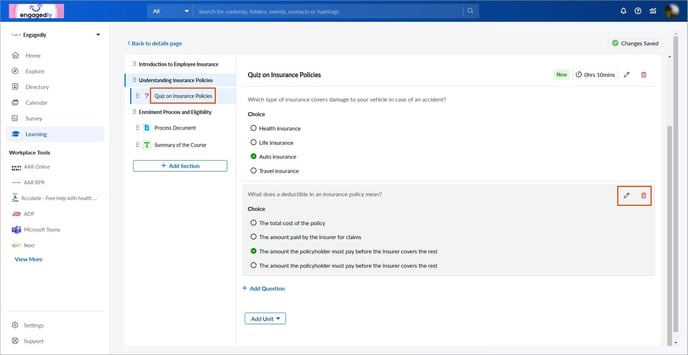
After adding questions to the quiz, edit or delete them if required.
4. Follow steps 1 to 3.
5. Select the Pen  or Delete
  Icon on the right side of a quiz as required.
📒Note: If you add a quiz unit to a course, you must include at least one question in the quiz before you can publish the course.
After creating a course, you must publish it and push it to the library. Learn more in the Publish course.
📒Note: You must publish the course to assign it to the learners.
You can view the learners’ responses to a quiz and reset the failed quiz. Learn more in View quiz responses and reset quiz.